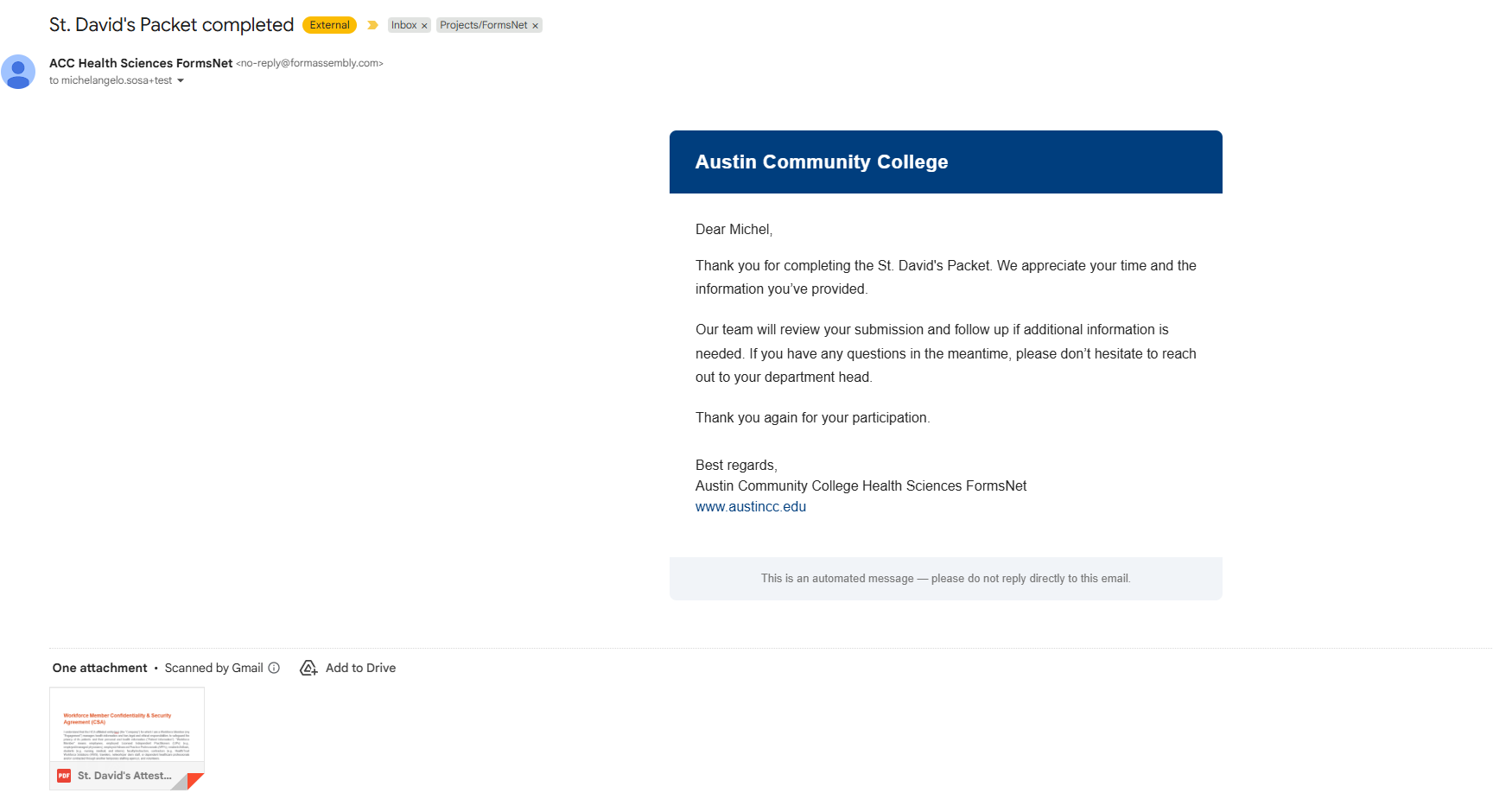
Step 1:
Wait for the email notification to your inbox.
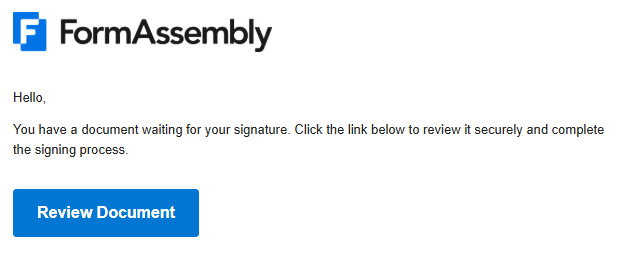
Step 2:
Click the “Review Document” button.
Step 3:
Click the “Start” button at the top right corner of the screen.


This will start the signature process and direct you to the signature fields.
Step 4:
You will be prompted to create your eSignature by drawing your signature, typing your signature, or uploading your custom signature.
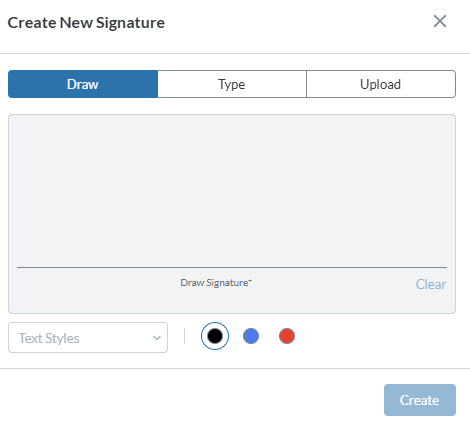
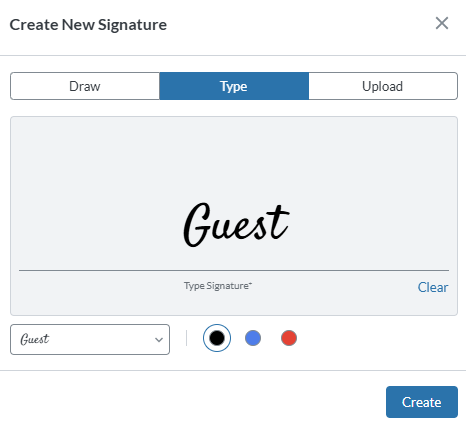
This same signature will be used for all the signing fields in this workflow.
Step 5:
Click the “Sign Here” button, then the next button at the top right corner to make sure you don’t miss any signature fields.
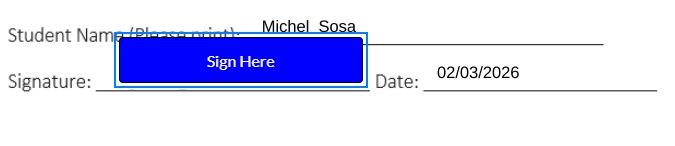

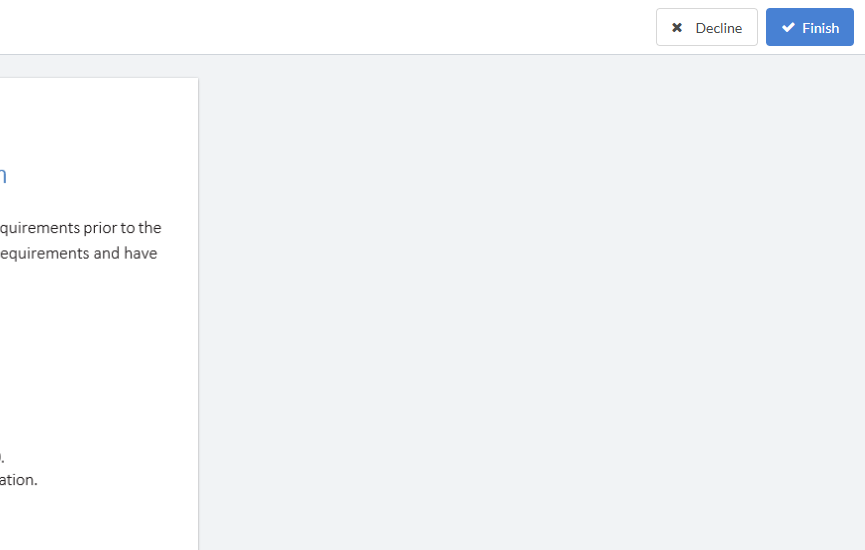
Repeat this process until you see a “Finish” button at the top right hand corner of your screen.
Step 6:
You will be redirected to the “Signature Completion” page.

Close this window and wait for your email notification.
The email will contain the printable copy of your fully signed forms.